When you’re building cross-platform software on a Mac, there’s a moment in every release cycle where you need to stop cross-compiling and start actually running the thing on Windows. Parallels Desktop on Apple Silicon gives you a native ARM64 Windows 11 VM, which is ideal for this. The handoff between the two environments (getting your freshly built binary into the VM and verifying it works) has a few rough edges worth documenting.
What Is Parallels Desktop?
Parallels Desktop is a virtualization application for macOS that lets you run Windows (and Linux) as a virtual machine alongside your Mac applications. On Apple Silicon Macs, it uses the Apple Hypervisor framework to run ARM64 guests with near-native performance, so there’s no emulation penalty for ARM64 Windows binaries.
A few things that make it particularly useful for developer testing:
- ARM64 Windows 11 runs natively. Microsoft provides ARM64 images specifically for this use case.
- Shared folders expose your macOS filesystem to the VM without any network configuration. This is the key feature for file transfer.
- Snapshots let you freeze and restore VM state, which is useful for repeatable testing against a clean environment.
prlctlis a command-line interface that ships with Parallels for managing VMs from Terminal. More on this below.
Alternatives like UTM (open-source, based on QEMU) and VMware Fusion exist, but Parallels has the most polished shared folder integration on macOS, which is what this post focuses on.
If your goal is automated CI testing rather than interactive debugging, GitHub Actions now offers Windows 11 ARM64 runners (windows-arm64). Parallels is better suited for the hands-on side: inspecting GUI behavior, stepping through a debugger, or verifying license activation flows that are hard to automate.
A Note on Disk Space
A fresh Windows 11 ARM64 VM starts at around 20-25 GB and grows as you install tools and accumulate test artifacts. Parallels stores VM images in ~/Parallels/ by default, and you can reclaim space by deleting old snapshots or using Parallels Desktop > Free Up Disk Space to compact the virtual disk.
How Shared Folders Work
Parallels exposes your macOS home directory into the Windows VM via a UNC path:
\\Mac\HomeUnder the hood, Parallels runs a lightweight SMB-like service that presents your macOS filesystem to the Windows guest. No network shares to configure, no IP addresses to manage. It just appears. Your macOS ~/Desktop becomes \\Mac\Home\Desktop on the Windows side, and similarly for ~/Documents, ~/Downloads, and any other directory under your home folder.
Parallels can also map this path to a drive letter (commonly Z:\), making it accessible as Z:\Desktop instead of the UNC path. You can check and configure this under Parallels Desktop > Configure > Options > Sharing. If desktop mirroring is enabled, files on your macOS Desktop may even appear directly on the Windows Desktop, though I wouldn’t count on this for scripted workflows.
Shared folders, clipboard sync, drag-and-drop, and drive letter mapping all depend on Parallels Tools being installed inside the Windows guest. If \\Mac\Home doesn’t exist in your VM, this is almost certainly why. Parallels usually prompts you to install them when you first boot a new VM, but you can also trigger the install manually from the Actions menu. If you’ve recently updated Parallels itself, the tools inside the guest may need updating to match.
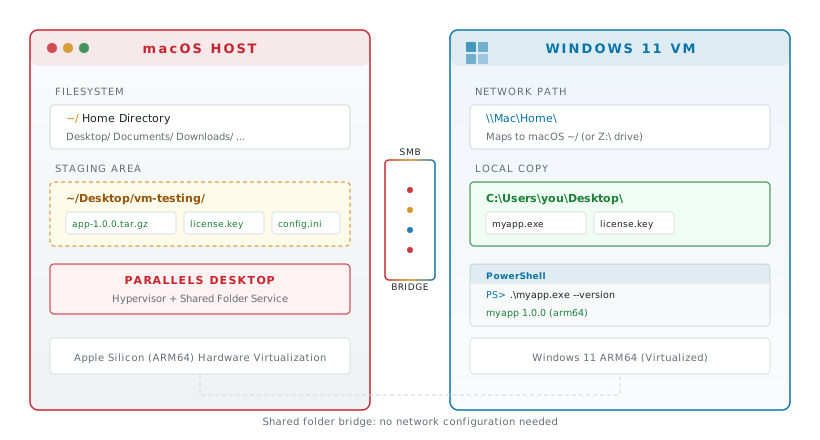
\\Mac\Home or a mapped drive letter.
\\Mac\Home or a mapped drive letter.Moving Files Into the VM
Say you’ve just built a cross-compiled Windows ARM64 binary on your Mac and need to bring it into the VM along with a license file. Drop both somewhere predictable on the macOS side:
macOS Terminal
cp /tmp/myapp-win-arm64/myapp-1.0.0-windows-arm64.tar.gz ~/Desktop/
cp ~/projects/deployment/licenses/test-license.key ~/Desktop/
Then from inside the Windows VM, copy them locally, extract, and test:
Windows PowerShell
copy "\\Mac\Home\Desktop\myapp-1.0.0-windows-arm64.tar.gz" "$env:USERPROFILE\Desktop\"
copy "\\Mac\Home\Desktop\test-license.key" "$env:USERPROFILE\Desktop\"
cd "$env:USERPROFILE\Desktop"
tar xzf myapp-1.0.0-windows-arm64.tar.gz
.\myapp.exe --install-keyfile "$env:USERPROFILE\Desktop\test-license.key"
.\myapp.exe --version
The key check: does --version work without any “DLL not found” errors? If you statically linked your dependencies, this confirms it. If you didn’t, Windows will tell you exactly which DLLs are missing.
For air-gapped environments where the VM won’t have internet access, make sure all dependencies and configuration are bundled before you start. There’s no pip install or npm install to fall back on once you’re disconnected.
A common slip is trying to cd directly into a file path like cd \\Mac\Home\Desktop\myapp.tar.gz. PowerShell will throw an ObjectNotFound error. Either copy the file to a local path first (recommended) or cd to the directory containing it. If \\Mac\Home isn’t accessible at all, check if Parallels mapped it to a drive letter instead with Get-PSDrive -PSProvider FileSystem.
ARM64 vs x86: Check What You’re Actually Running
Windows on ARM can run x86 binaries through Microsoft’s emulation layer, so a miscompiled or wrongly packaged x86 binary may appear to “work” while silently running under emulation with a performance penalty. If you’re specifically testing an ARM64 build, verify the architecture explicitly:
Windows PowerShell
# Quick check using dumpbin (requires Visual Studio tools)
dumpbin /headers .\myapp.exe | findstr machine
You should see AA64 for ARM64. If you see 8664 (x86_64) or 14C (x86), the binary isn’t what you think it is. You can also check in Task Manager under the Details tab, which has an Architecture column.
A Repeatable Staging Pattern
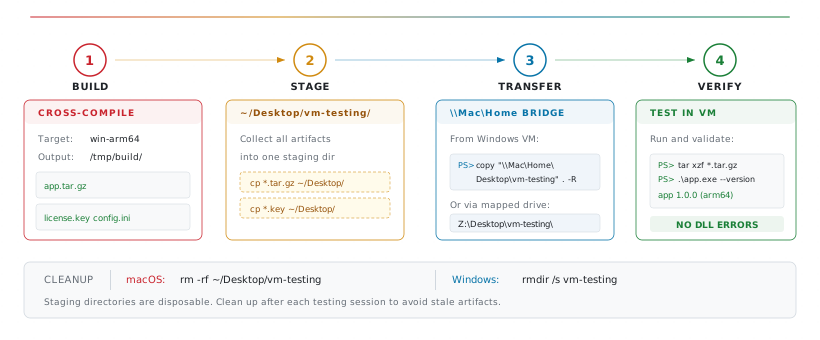
After a few rounds of ad hoc file copying, a pattern emerges. On the macOS side, I keep a dedicated staging directory:
macOS Terminal
# Stage everything the VM needs
mkdir -p ~/Desktop/vm-testing
cp /tmp/myapp-win-arm64/*.tar.gz ~/Desktop/vm-testing/
cp ~/projects/deployment/licenses/*.key ~/Desktop/vm-testing/
cp ~/projects/test-data/sample-input.csv ~/Desktop/vm-testing/
Then from Windows, one copy pulls the whole directory:
Windows PowerShell
copy "\\Mac\Home\Desktop\vm-testing" "$env:USERPROFILE\Desktop\vm-testing" -Recurse
cd "$env:USERPROFILE\Desktop\vm-testing"
This keeps the macOS Desktop from getting cluttered and makes it easy to blow away the staging area when you’re done:
macOS Terminal
rm -rf ~/Desktop/vm-testingAlways copy files to a local directory inside the VM rather than running them directly from the shared folder. This avoids file locking conflicts, sidesteps Windows’ 260-character path limit on deeply nested UNC paths, and prevents the occasional permission quirk where the shared folder layer won’t let a .exe run in place.
File Watchers Don’t Cross the Bridge
If you’re running a build tool that relies on filesystem events (webpack, esbuild, cargo watch), be aware that change notifications don’t propagate through the Parallels shared folder. Editing a file on the macOS side won’t trigger a watcher inside the Windows VM, and vice versa. This is another reason to copy files locally. For live reloading across the boundary, you’ll need polling-based watchers (most tools have a --poll flag) or just re-run the copy step after making changes.
Networking Between Host and Guest
Parallels’ default shared networking mode lets the VM reach the internet through your Mac’s connection. If you also need the VM to reach a service running on the Mac (or the other way around), the default topology makes this straightforward: your Mac is reachable from the Windows VM at 10.211.55.2, and the VM gets its own IP on the same 10.211.55.x subnet.
Windows PowerShell
ipconfig | findstr "IPv4"This means you can start an API server on the Mac and hit it from the VM at http://10.211.55.2:8080, or run a Windows service in the VM and connect to it from the Mac. No port forwarding or firewall rules needed.
Managing VMs from the Command Line
Parallels ships prlctl, a command-line tool for managing VMs without touching the GUI. This pairs well with the staging workflow if you want to script the whole cycle:
macOS Terminal
# List available VMs
prlctl list --all

# Start a VM
prlctl start "Windows 11"

# Take a snapshot before testing
prlctl snapshot "Windows 11" --name "pre-test"

# Roll back after testing
prlctl snapshot-switch "Windows 11" --name "pre-test"

# Delete the snapshot when you're done
prlctl snapshot-delete "Windows 11" --name "pre-test"

# Stop the VM
prlctl stop "Windows 11"
The snapshot workflow is especially useful for destructive testing. Snapshot before you start, run your tests, then roll back to the clean state. Each test run starts from the same baseline without reinstalling anything.
Wrapping Up
The core idea: stage files on the macOS Desktop, pull them into the VM via \\Mac\Home, copy them locally, and test. Shared folders handle the transport; prlctl handles the VM lifecycle; you handle the verification.
If you’re testing across multiple platforms regularly, it’s worth spending ten minutes to set up the staging directory convention and verify your Parallels sharing settings are configured the way you expect. The upfront cost is small; the daily friction reduction is real.