plotnine brings the grammar of graphics to Python: a port of R’s ggplot2 that builds a chart as a stack of layers. You start from ggplot(data, aes(...)) and add layers with +: geoms draw, stats summarize, scales map data to pixels and colors, facets split into small multiples, coords bend the axes, and themes restyle the non-data ink. The same data with different layers gives a different chart. Aesthetics (aes) are mappings from columns to visual channels (x, y, color, fill, size, shape), while fixed looks go outside aes(). plotnine sits on top of pandas data frames and matplotlib rendering, so a tidy frame in gives a polished figure out. This cheatsheet walks the eight pieces of that grammar.


Every command below uses the bundled mpg data, a 234-row tidy frame (displ, hwy, cty, class, drv, cyl, year) that is the running example across all eight panels:
from plotnine import *
from plotnine.data import mpg, economics, diamonds
Foundations: the grammar
Every plotnine chart begins with ggplot(data, aes(...)) and grows by adding layers with +. Until you call a geom there is nothing to draw, and until you show, print, or save it the plot is just a Python object you can keep extending.
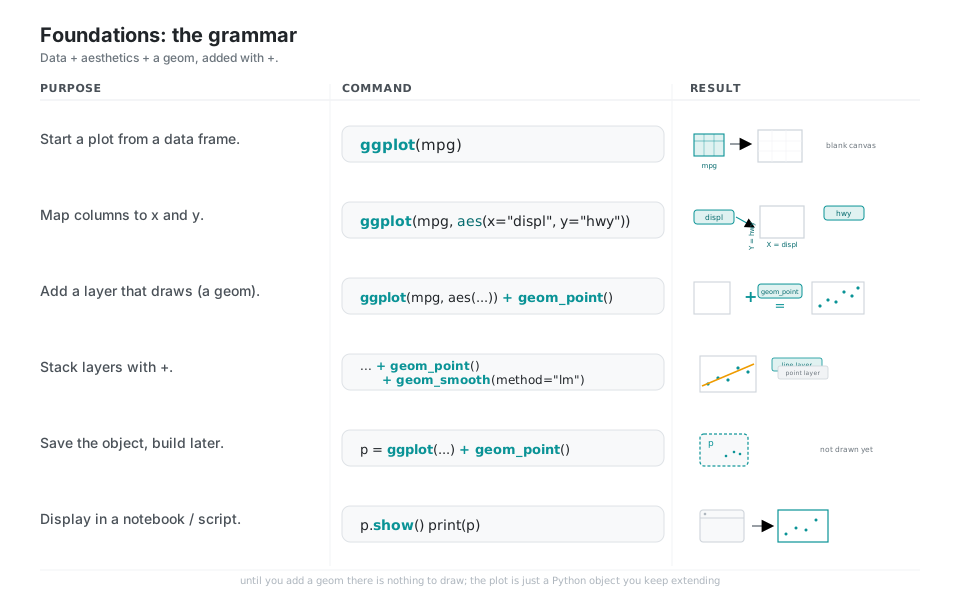
from plotnine import ggplot, aes, geom_point, geom_smooth
from plotnine.data import mpg

ggplot(mpg)                                            # bind data: a blank canvas, nothing drawn yet
ggplot(mpg, aes(x="displ", y="hwy"))                   # map columns to the x and y channels
ggplot(mpg, aes("displ", "hwy")) + geom_point()        # add a geom layer: now dots appear
(ggplot(mpg, aes("displ", "hwy"))
 + geom_point() + geom_smooth(method="lm"))            # stack layers with + (points, then a trend line)
p = ggplot(mpg, aes("displ", "hwy")) + geom_point()    # save the object; still not drawn
p.show() # or: print(p) # render it in a notebook or scriptAesthetics: mapping data to channels
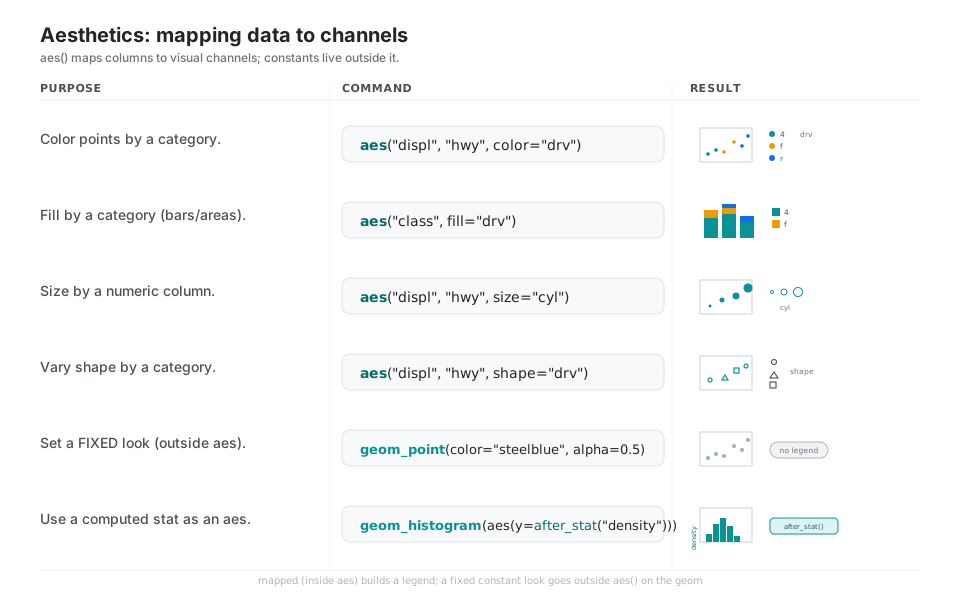
aes() is a mapping from data columns to visual channels like x, y, color, fill, size, and shape, so the legend is generated for you. If you want a constant look (one fixed color or size) put it outside aes() directly on the geom, otherwise plotnine treats the value as data and builds a legend for it.
from plotnine import aes, geom_point, geom_histogram, after_stat

aes("displ", "hwy", color="drv")       # color points by a category -> legend drv: 4 / f / r
aes("class", fill="drv")               # fill bars/areas by a category
aes("displ", "hwy", size="cyl")        # size points by a numeric column
aes("displ", "hwy", shape="drv")       # vary marker shape by a category
geom_point(color="steelblue", size=3, alpha=0.5)   # FIXED look: outside aes(), so no legend
geom_histogram(aes(y=after_stat("density"))) # use a computed stat as an aestheticGeoms: the chart vocabulary
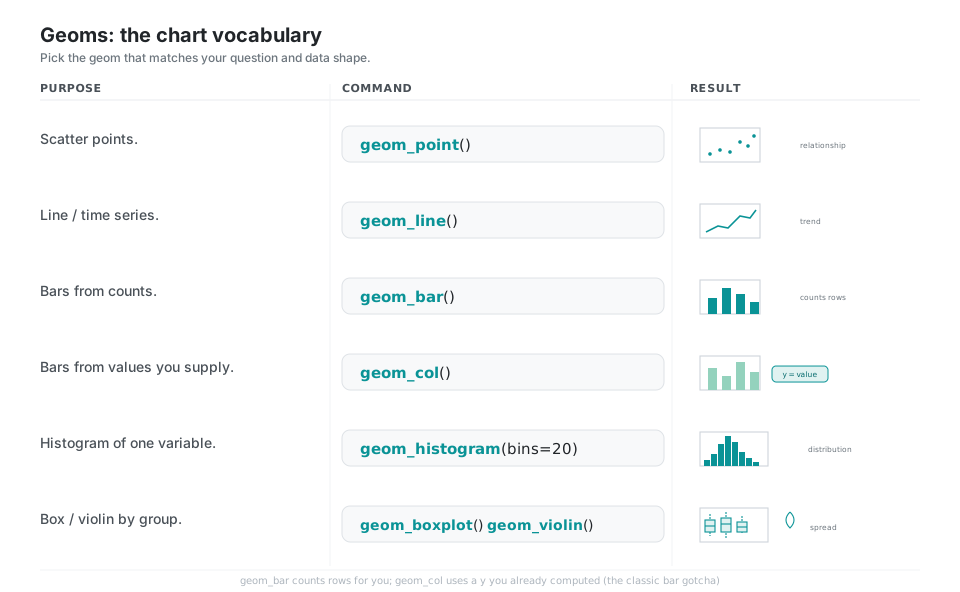
The geom is the shape of the mark and therefore the kind of chart: points for relationships, lines for trends, bars and histograms for amounts and distributions, boxes and violins for spread. geom_bar() counts rows for you while geom_col() uses a y value you already computed, which is the single most common bar-chart gotcha.
from plotnine import geom_point, geom_line, geom_bar, geom_col
from plotnine import geom_histogram, geom_boxplot, geom_violin

geom_point()             # scatter of points (relationships)
geom_line()              # connected line (trend / time series)
geom_bar()               # bars from COUNTS of rows per category (stat="count")
geom_col()               # bars from VALUES you supply (stat="identity")
geom_histogram(bins=20)  # distribution of one variable in 20 bins
geom_boxplot() # or: geom_violin() # spread by groupStats and position: summarize and arrange
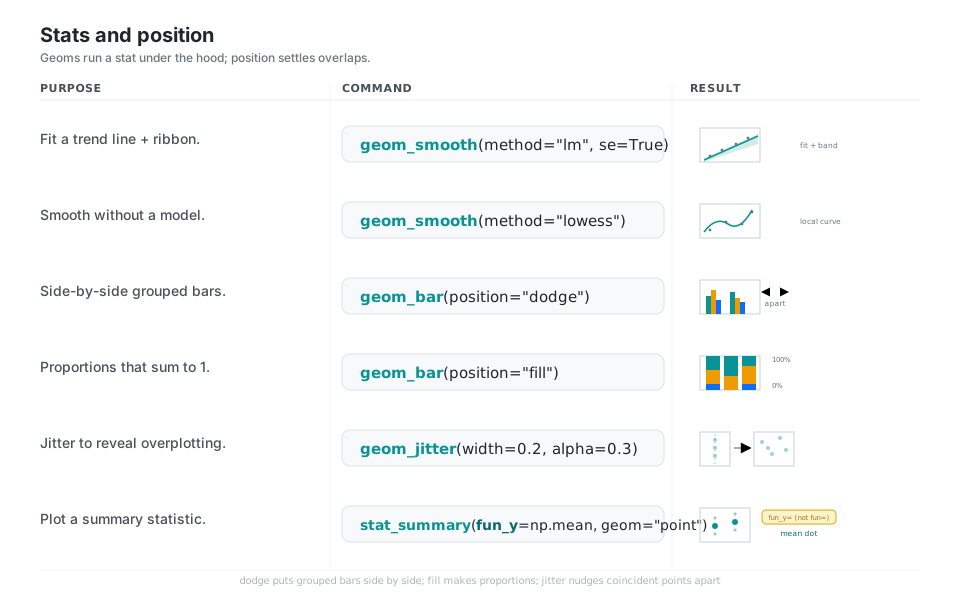
Many geoms quietly run a statistical transformation (binning a histogram, fitting geom_smooth, counting for geom_bar), and the position adjustment decides how overlapping marks are arranged. dodge puts grouped bars side by side, fill turns them into proportions, and jitter nudges coincident points apart so you can see density.
import numpy as np
from plotnine import geom_smooth, geom_bar, geom_jitter, stat_summary

geom_smooth(method="lm", se=True)        # straight fit line + shaded confidence band
geom_smooth(method="lowess")             # wiggly locally-fitted curve (no model)
geom_bar(position="dodge")               # grouped bars placed side by side
geom_bar(position="fill")                # proportions that sum to 1 (0 to 100%)
geom_jitter(width=0.2, alpha=0.3)        # nudge overplotted points apart
stat_summary(fun_y=np.mean, geom="point") # plot a per-group mean; note fun_y, not funScales: control axes, colors, breaks
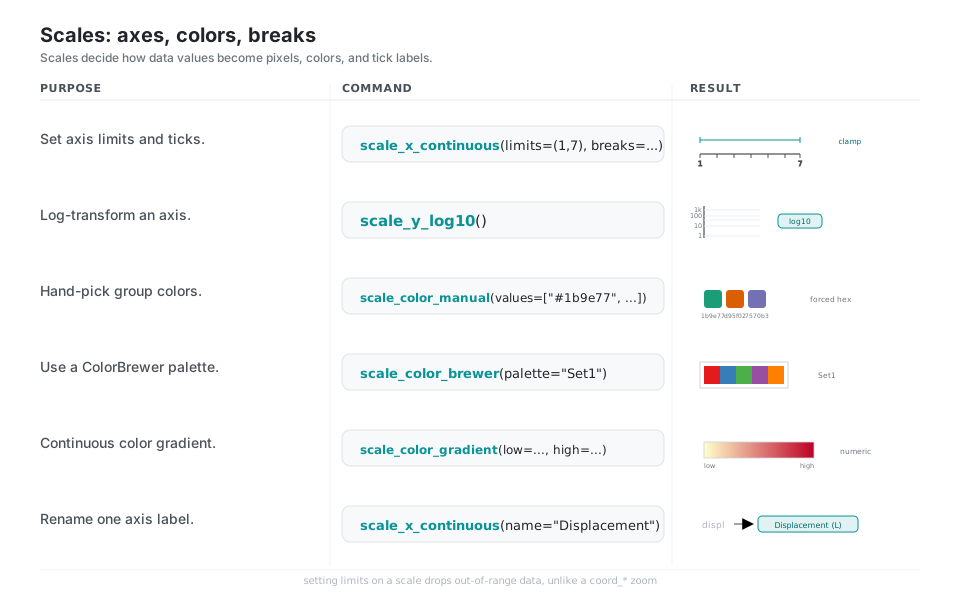
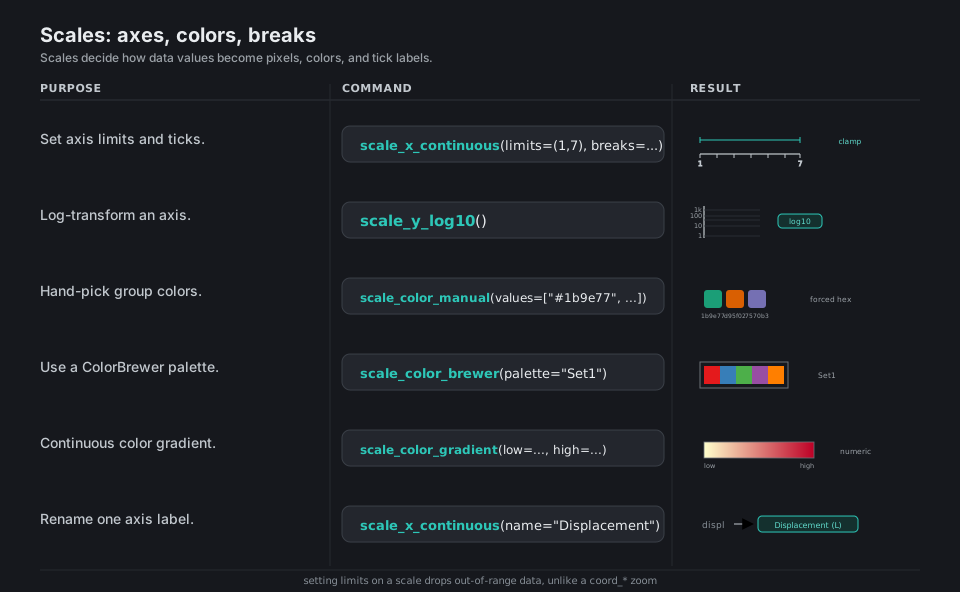
Scales are the translation layer from data values to pixels, colors, and tick labels. Use them to set axis limits and breaks, log-transform an axis, or swap the color palette, and remember that setting limits on a scale actually drops out-of-range data, unlike a coord_* zoom.
from plotnine import (scale_x_continuous, scale_y_log10, scale_color_manual,
                      scale_color_brewer, scale_color_gradient)

scale_x_continuous(limits=(1, 7), breaks=range(1, 8))      # zoom axis to 1..7, evenly spaced ticks
scale_y_log10()                                            # log axis labeled 1, 10, 100, 1000
scale_color_manual(values=["#1b9e77", "#d95f02", "#7570b3"])   # hand-pick group colors
scale_color_brewer(type="qual", palette="Set1")            # use a ColorBrewer discrete palette
scale_color_gradient(low="#ffffcc", high="#bd0026")        # continuous low-to-high color bar
scale_x_continuous(name="Displacement (L)")                # rename one axis label set
See the scales guide.
Facets and coordinates: small multiples and axes
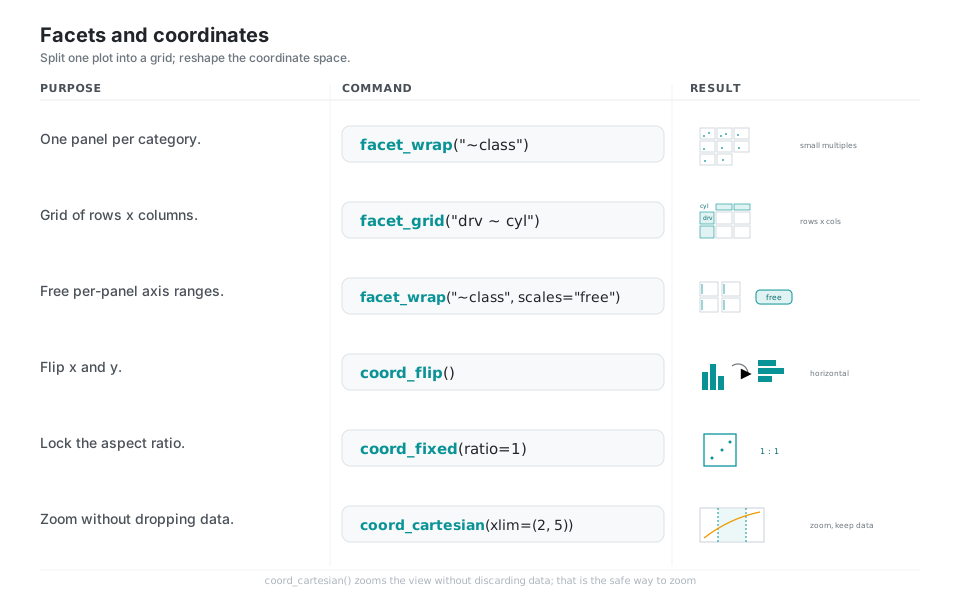
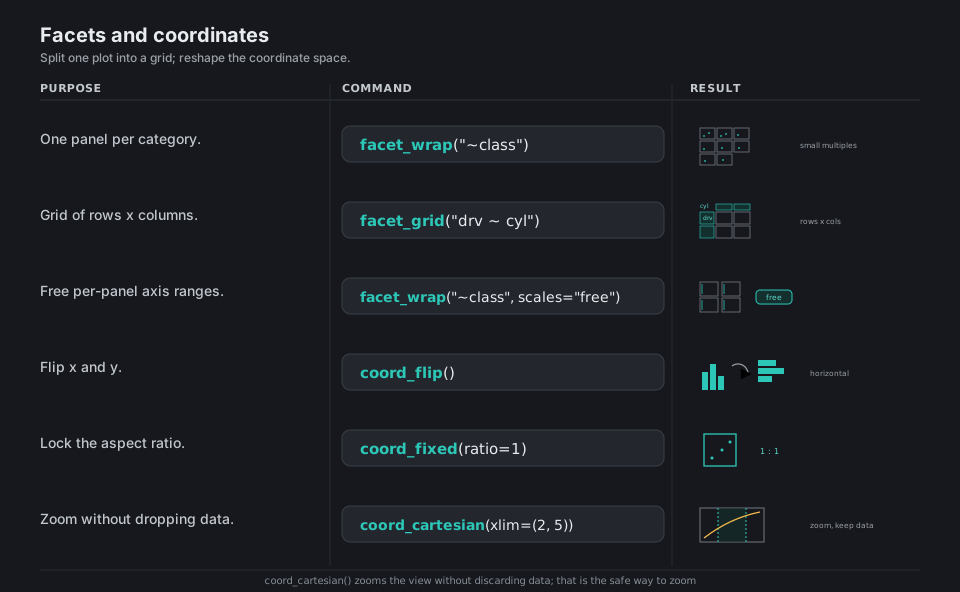
Facets split one specification into a grid of small multiples so each subgroup gets its own panel, while coordinate systems reshape the plotting space, for example flipping bars horizontal or locking a 1:1 aspect ratio. coord_cartesian() zooms the view without discarding data, which is the safe way to zoom.
from plotnine import facet_wrap, facet_grid, coord_flip, coord_fixed, coord_cartesian

facet_wrap("~class")                       # one panel per category (mpg has 7 classes)
facet_grid("drv ~ cyl")                    # grid: rows = drv, columns = cyl
facet_wrap("~class", scales="free")        # each panel gets its own auto-zoomed axes
coord_flip()                               # swap x and y (vertical bars -> horizontal)
coord_fixed(ratio=1)                       # lock a 1:1 aspect ratio (square box)
coord_cartesian(xlim=(2, 5))               # zoom the view, keep all data (unlike scale limits)
See the facets guide and coordinate systems.
Themes and labels: polish the look
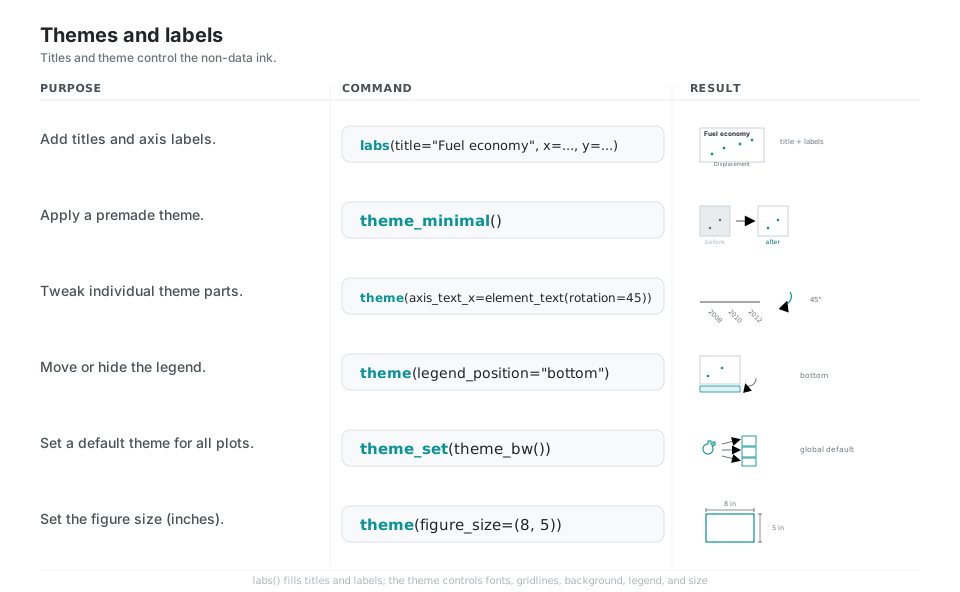
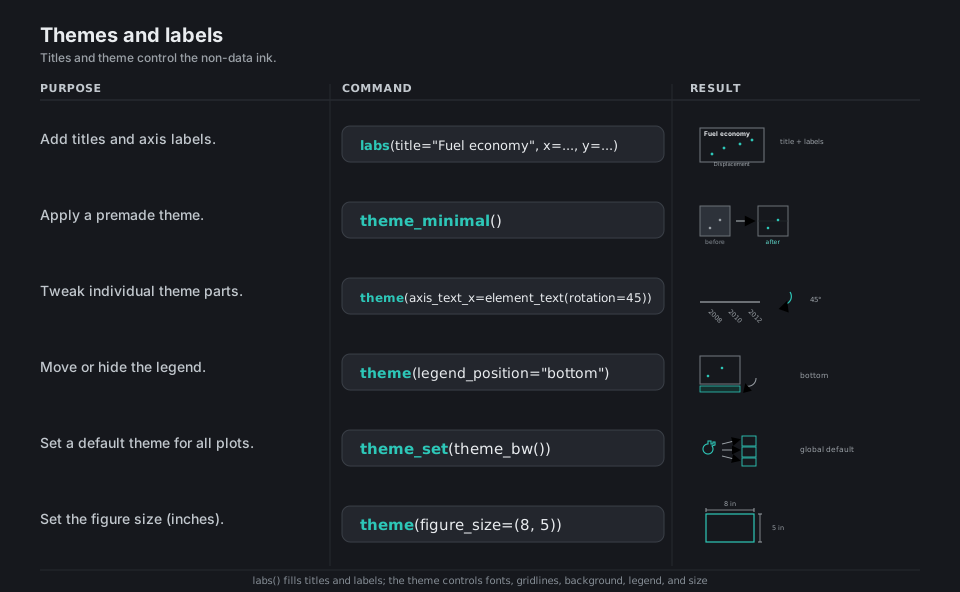
labs() fills the title and axis labels; the theme controls all the non-data ink: fonts, gridlines, background, legend placement, and figure size. Pick a premade theme for a quick restyle, drop into theme(...) with element_*() helpers for fine control, or call theme_set() once to make a theme the default for the whole session.
from plotnine import labs, theme_minimal, theme, element_text, theme_set, theme_bw

labs(title="Fuel economy", x="Displacement", y="Highway mpg")    # add titles and axis labels
theme_minimal()                                                  # apply a premade theme
theme(axis_text_x=element_text(rotation=45, ha="right"))         # rotate x tick labels 45 degrees
theme(legend_position="bottom")                                  # move the legend (or "none" to hide)
theme_set(theme_bw())                                            # set a default theme for all plots
theme(figure_size=(8, 5))                                        # set the figure size in inches
See the theme basics guide, premade themes, and labels.
Save and export: get the image out
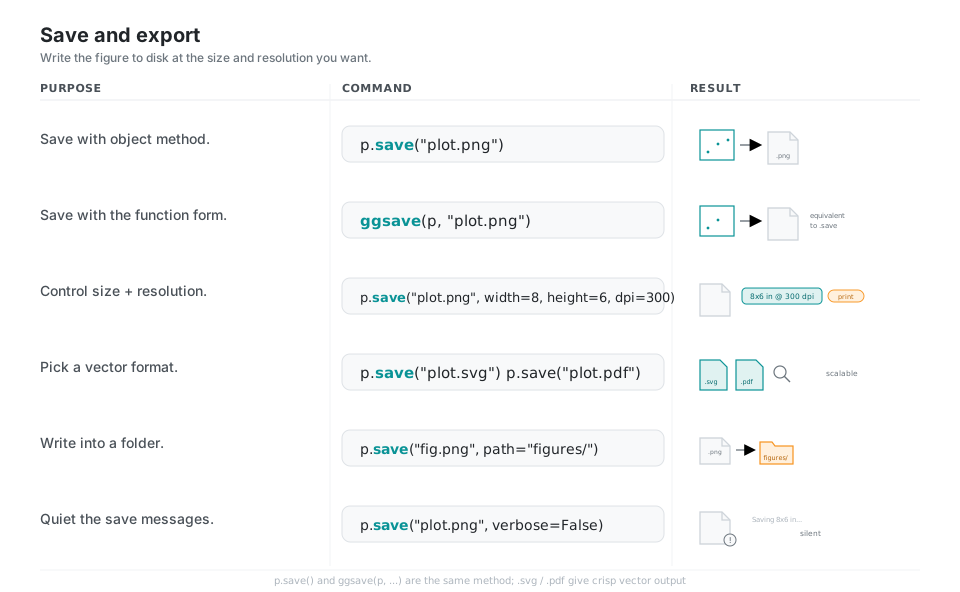
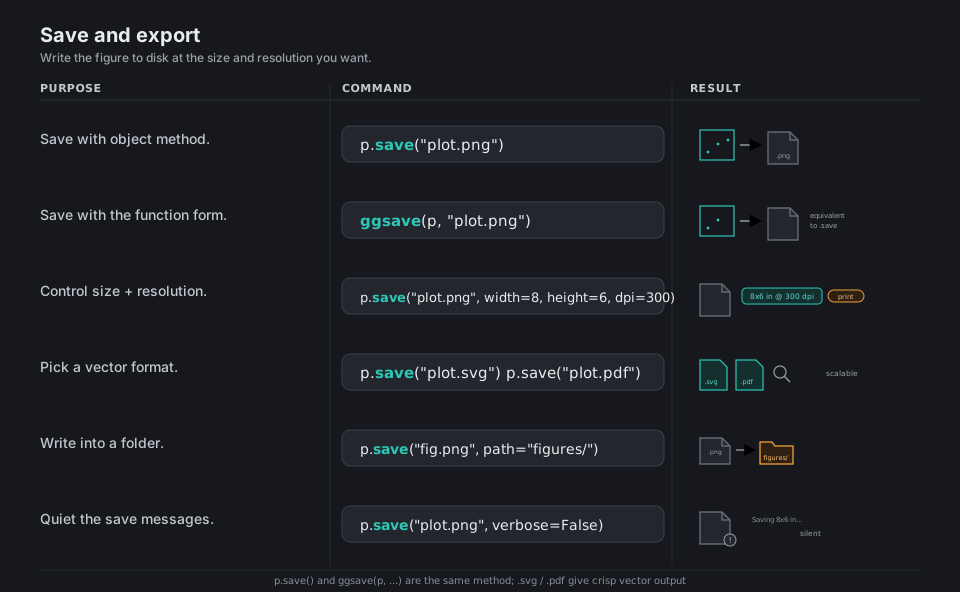
Render to disk with p.save(...) (or the equivalent ggsave(p, ...)), choosing width, height, and dpi for raster output or an .svg or .pdf extension for crisp vector output. Pass path= to target a folder and verbose=False to silence the dimension log.
from plotnine import ggsave

p.save("plot.png")                              # save with the object method
ggsave(p, "plot.png")                           # function form (equivalent to p.save)
p.save("plot.png", width=8, height=6, dpi=300)  # control size (inches) + resolution
p.save("plot.svg")   # or:  p.save("plot.pdf")  # vector formats, infinitely scalable
p.save("fig.png", path="figures/")              # write into a folder
p.save("plot.png", verbose=False) # quiet the "Saving ..." messagesQuick Reference
| Piece | Role |
|---|---|
ggplot(data, aes(...)) |
Start: bind data and default aesthetics |
+ geom_*() |
Add a drawing layer |
+ stat_*() |
Add a computed-summary layer |
+ scale_*() |
Map data to pixels, colors, breaks |
+ facet_*() |
Split into small-multiple panels |
+ coord_*() |
Reshape the coordinate space |
+ labs() / + theme_*() / + theme() |
Titles and styling |
.save() / ggsave() |
Write to disk |
| Aesthetic | Maps to |
|---|---|
x, y |
Position |
color |
Outline, point, or line color |
fill |
Area fill color |
size |
Point or line size |
shape |
Marker shape |
alpha |
Opacity |
group |
Grouping without a visual channel |
| Geom | Chart |
|---|---|
geom_point |
Scatter |
geom_line |
Line / time series |
geom_bar |
Bars from counts |
geom_col |
Bars from values |
geom_histogram |
Distribution of one variable |
geom_boxplot / geom_violin |
Spread by group |
geom_smooth |
Trend line / band |
Appendix: Sample Code
Install
# with uv (matches the series pilot)
uv add plotnine
# or pip
python -m pip install plotnine
plotnine pulls in pandas, matplotlib, mizani, statsmodels, scipy, and numpy. The geom_smooth(method="loess") smoother additionally needs scikit-misc; the always-available smoothers are lm, lowess, glm, and gls.
Minimal end-to-end example
from plotnine import (
    ggplot, aes, geom_point, geom_smooth, facet_wrap,
    scale_color_brewer, labs, theme_minimal,
)
from plotnine.data import mpg

p = (
    ggplot(mpg, aes(x="displ", y="hwy", color="drv"))
    + geom_point()
    + geom_smooth(method="lm")
    + facet_wrap("~class")
    + scale_color_brewer(type="qual", palette="Set1")
    + labs(title="Fuel economy", x="Displacement (L)", y="Highway mpg")
    + theme_minimal()
)

p.save("fuel-economy.png", width=8, height=6, dpi=150)
The geom_bar vs geom_col gotcha
from plotnine import ggplot, aes, geom_bar, geom_col
from plotnine.data import mpg
import pandas as pd

# geom_bar COUNTS rows per category (stat="count" under the hood)
ggplot(mpg, aes("class")) + geom_bar()

# geom_col uses a y value YOU supply (stat="identity")
counts = mpg["class"].value_counts().reset_index()
counts.columns = ["class", "n"]
ggplot(counts, aes("class", "n")) + geom_col()
Mapped vs fixed aesthetics
from plotnine import ggplot, aes, geom_point
from plotnine.data import mpg

# MAPPED: color comes from data -> a legend is built
ggplot(mpg, aes("displ", "hwy", color="drv")) + geom_point()

# FIXED: one constant color -> no legend (note it is OUTSIDE aes())
ggplot(mpg, aes("displ", "hwy")) + geom_point(color="steelblue")
References
plotnine documentation
- plotnine documentation home, the guides index, and the API reference
- Introduction, aesthetic mappings, geometric objects
- Position adjustments, scales, facets, coordinate systems
- Theme basics, premade themes, labels, save and display
Background