Quarto supports three table syntaxes out of the box: pipe tables, grid tables, and list tables. Each has its own strengths. Pipe tables are quick to write, grid tables handle block-level content inside cells, and list tables work well for complex layouts with rowspan and colspan. On top of that, Quarto adds captions, cross-references, column width control, and Bootstrap styling classes. For the full reference, see the Tables page in the Quarto documentation.
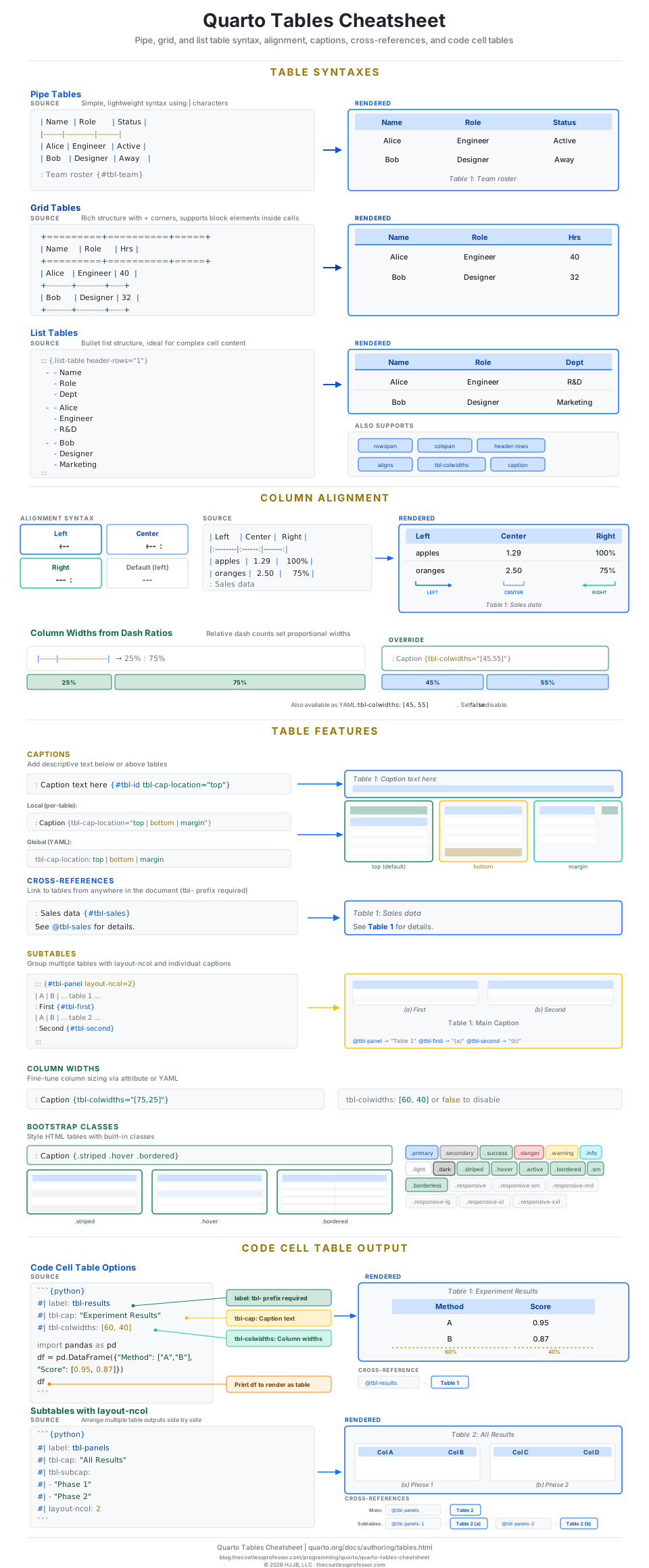
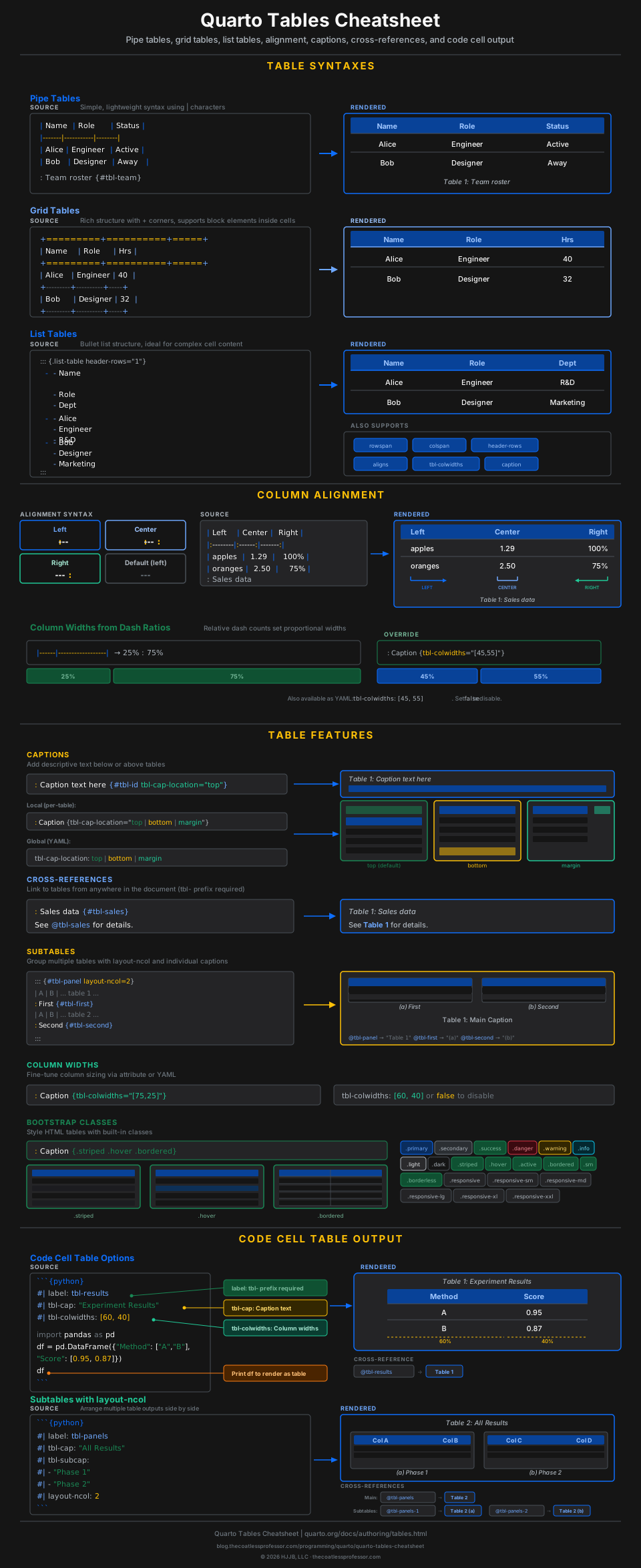
Table Syntaxes
Quarto inherits Pandoc’s three table formats. The diagram below shows the source markup on the left and the rendered result on the right for each.
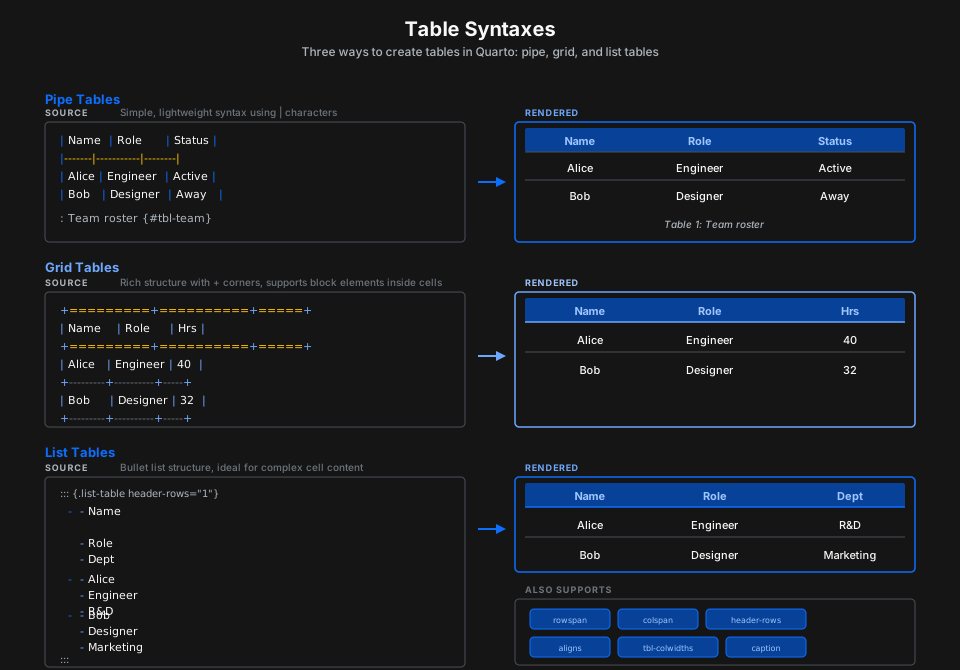
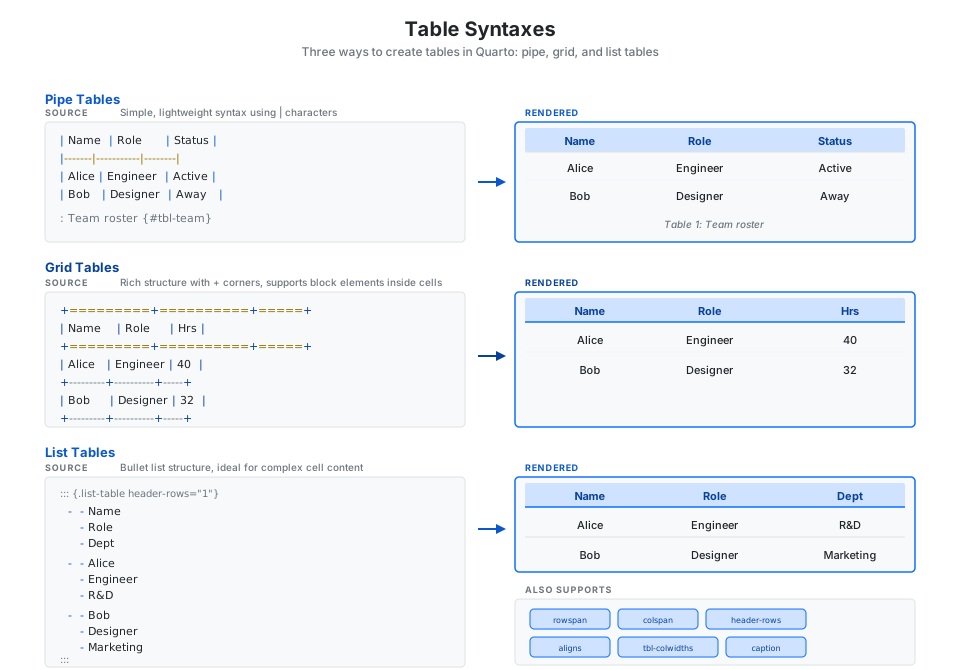
Pipe tables are the most common. Columns are separated by | characters and the header row is separated by dashes:
| Name  | Role     | Status |
|-------|----------|--------|
| Alice | Engineer | Active |
| Bob   | Designer | Away   |

: Team roster {#tbl-team}
Grid tables use + for corners and = to separate the header from the body. They support block-level content (lists, code blocks, paragraphs) inside cells:
+=========+==========+-----+
| Name    | Role     | Hrs |
+=========+==========+=====+
| Alice   | Engineer |  40 |
+---------+----------+-----+
| Bob     | Designer |  32 |
+---------+----------+-----+
List tables use a fenced div with nested bullet lists. The top-level items are rows and nested items are cells:
::: {.list-table header-rows="1"}
  -  - Name
     - Role
  -  - Alice
     - Engineer
:::
Column Alignment
Place colons in the separator row to control alignment. A colon on the left means left-aligned (the default), on the right means right-aligned, and on both sides means centered.
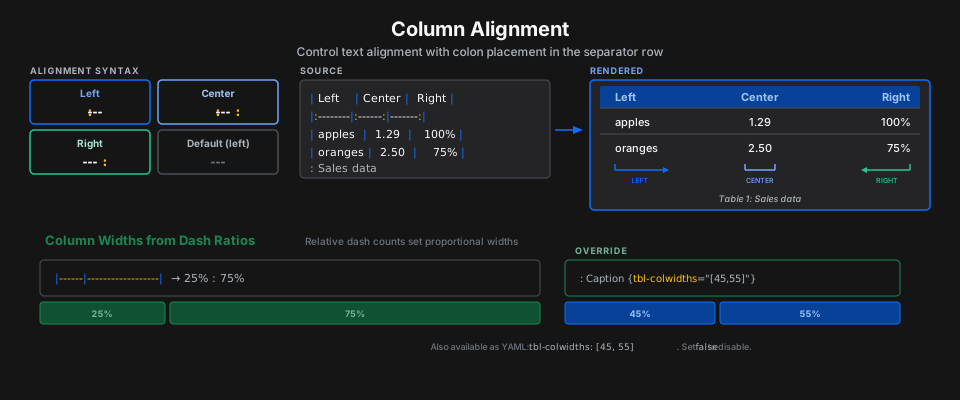
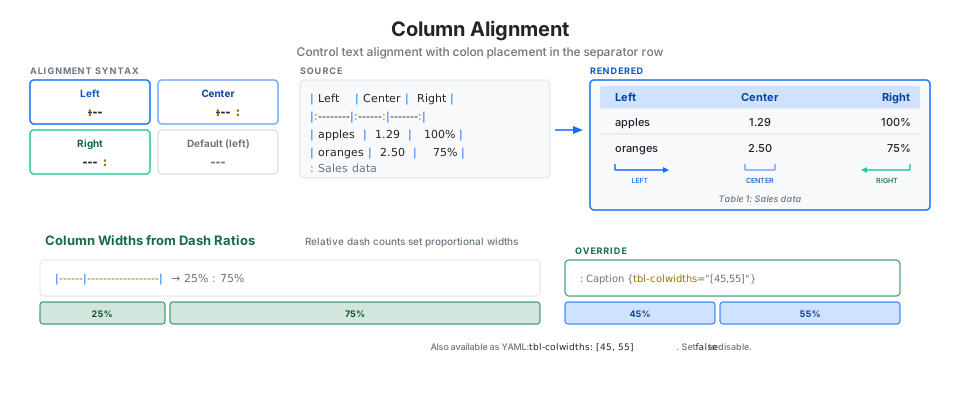
| Left    | Center |  Right |
|:--------|:------:|-------:|
| apples  |  1.29  |   100% |
| oranges |  2.50  |    75% |
The relative number of dashes in each column also determines proportional widths. Six dashes versus eighteen dashes gives a 25%/75% split. You can override this with the tbl-colwidths attribute:
: Caption {tbl-colwidths="[25,75]"}Or set it globally in YAML:
tbl-colwidths: [60, 40]Set tbl-colwidths: false to disable automatic column width calculation entirely.
Table Features
Captions, cross-references, column widths, and Bootstrap styling give you fine control over how tables look and how readers navigate to them.
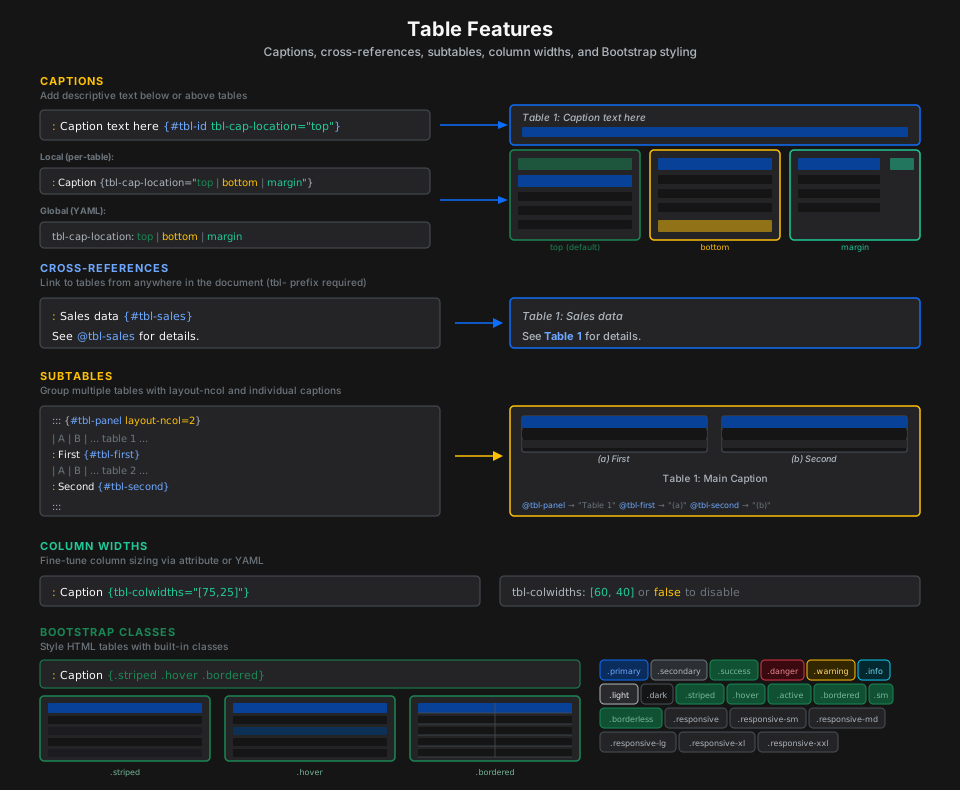
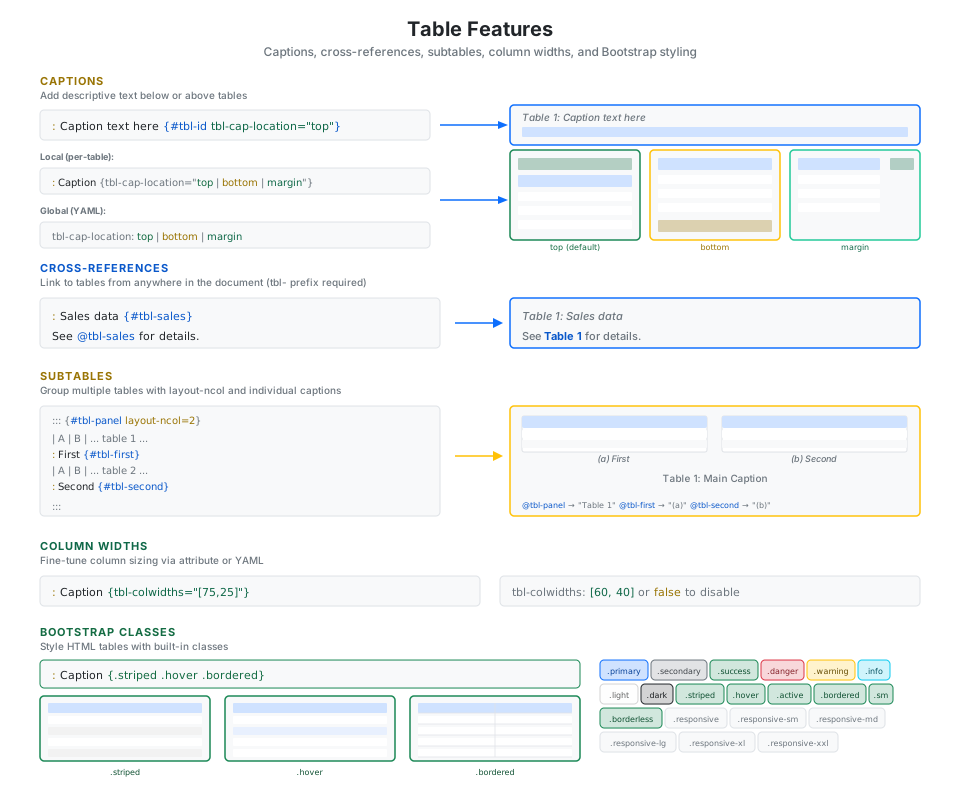
Captions go below the table with a colon prefix. Add a label for cross-referencing:
: Sales by region {#tbl-sales}Caption location can be set per table or globally:
tbl-cap-location: top # top (default), bottom, or marginCross-references require the tbl- prefix. Label a table with {#tbl-id} and reference it with @tbl-id:
See @tbl-sales for the full breakdown.This renders as “See Table 1 for the full breakdown.” with a clickable link.
Bootstrap classes style HTML table output. Apply them in the caption attribute:
: Caption {.striped .hover .bordered}| Class | Effect |
|---|---|
.striped |
Alternating row background colors |
.hover |
Highlight row on mouse hover |
.bordered |
Borders on all cells |
.sm |
Compact table with smaller padding |
.responsive |
Horizontal scroll on small screens |
.plain |
Remove default table styling |
Code Cell Table Output
When tables come from code cells (R, Python, Julia), use hash-pipe options to control captions, column widths, and subtable layout.
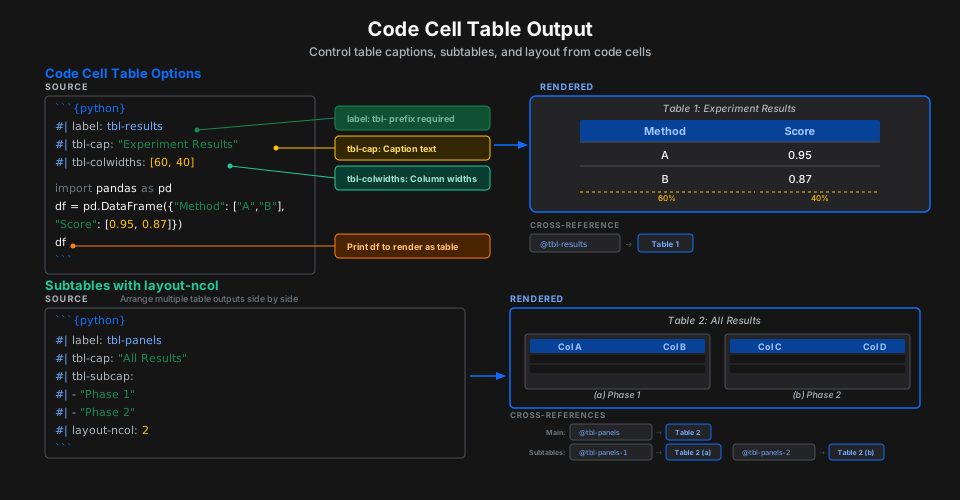
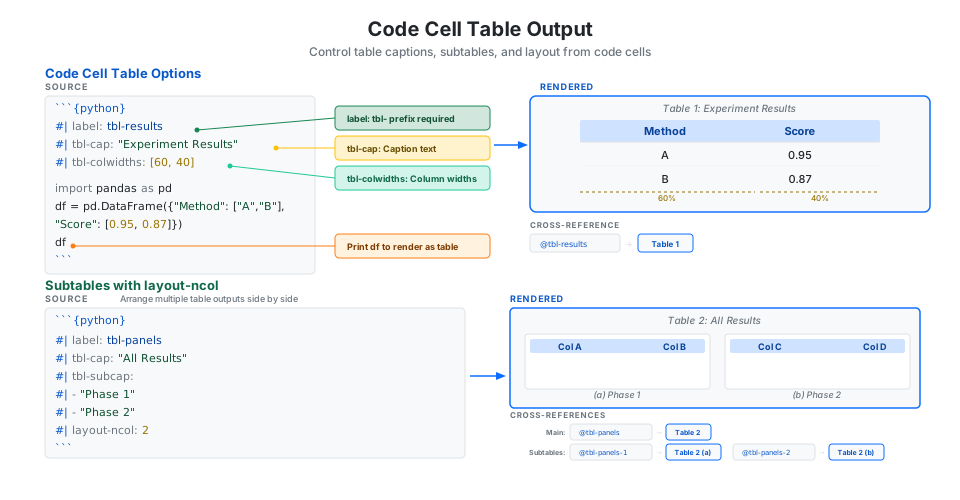
```{python}
#| label: tbl-results
#| tbl-cap: "Experiment Results"
#| tbl-colwidths: [60, 40]

import pandas as pd
df = pd.DataFrame({"Method": ["A", "B"], "Score": [0.95, 0.87]})
df
```
For subtables, output multiple tables from one cell and use tbl-subcap with layout-ncol:
```{python}
#| label: tbl-panels
#| tbl-cap: "All Results"
#| tbl-subcap:
#|   - "Phase 1"
#|   - "Phase 2"
#| layout-ncol: 2

import pandas as pd
df1 = pd.DataFrame({"A": [1, 2], "B": [3, 4]})
df2 = pd.DataFrame({"C": [5, 6], "D": [7, 8]})
display(df1)
display(df2)
```
Reference subtables individually: @tbl-panels gives “Table 1” and @tbl-panels-1 gives “Table 1 (a)”.
Quick Reference
| Syntax | Type | Best For |
|---|---|---|
Pipe \| |
Simple | Quick tables, most common use |
Grid + = - |
Rich | Block content inside cells |
List .list-table |
Structured | Rowspan, colspan, complex layouts |
| Option | Values / Example | Scope |
|---|---|---|
tbl-cap |
"Caption text" |
Code cell |
tbl-subcap |
["Sub A", "Sub B"] |
Code cell |
tbl-colwidths |
[60, 40] or false |
Cell or YAML |
tbl-cap-location |
top, bottom, margin |
Cell or YAML |
layout-ncol |
2, 3, etc. |
Code cell |
label |
tbl-myid (tbl- prefix) |
Code cell |
| Class | Effect |
|---|---|
.striped |
Alternating row background colors |
.hover |
Highlight row on mouse hover |
.bordered |
Borders on all cells |
.sm |
Compact table with smaller padding |
.responsive |
Horizontal scroll on small screens |
.plain |
Remove default table styling |