browseVignettes("pkg")                # open browser listing all vignettes
vignette(package = "pkg")             # list available vignettes in console
vignette("intro", package = "pkg")    # open a specific vignette by name
RShowDoc("intro", package = "pkg") # display rendered HTML/PDF directlyThe Mystery
There we were, setting up a GitHub Actions pipeline to build and deploy R packages to a private web server. Everything compiled. The tests passed. The binaries were created for Windows, macOS (Intel and ARM), and Linux. Victory was ours!
Until someone ran browseVignettes("ourpackage") and was greeted with… nothing. An empty HTML page mocking our efforts.
The culprit? A single character: .
The Road Ahead
To understand how a single dot can make vignettes vanish, we need to explore a few concepts. We’ll start with what vignettes are and why they matter, then examine the R package build pipeline in detail. Along the way, we’ll discover that . (the current directory) and a .tar.gz tarball represent fundamentally different inputs to R’s installation commands, with different consequences for your documentation.
What Are Vignettes?
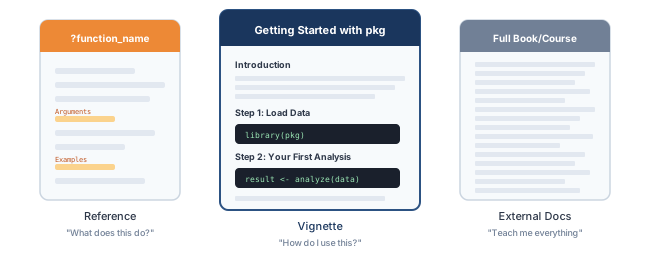
Vignettes are long-form documentation bundled with R packages. While help files (?function_name) document individual functions, vignettes tell the story of how to use a package. They answer “how do I actually solve my problem with this?” rather than “what does this function do?”
Think of help files as dictionary entries: precise, complete, and useful when you know exactly what you’re looking for. Vignettes, by contrast, are the tutorials and recipes that show you how to put those pieces together. They guide you through workflows, explain design decisions, and demonstrate how functions work in concert.
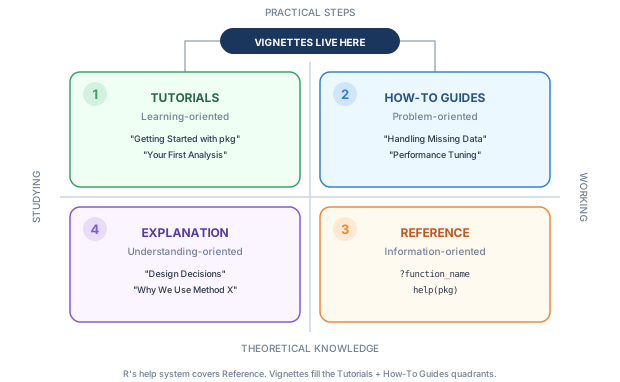
The Diátaxis framework (also known as the Divio documentation system) offers a useful way to think about this. It identifies four types of documentation: tutorials (learning-oriented), how-to guides (problem-oriented), reference (information-oriented), and explanation (understanding-oriented). R’s built-in help system covers reference documentation well. Vignettes fill the tutorials and how-to guides quadrants, taking users by the hand or answering their specific questions.
Packages with vignettes on CRAN tend to indicate maintainer investment. Writing good vignettes takes effort, and authors who take the time to explain their package’s workflow usually care about the user experience. You can browse package vignettes on CRAN at https://cran.r-project.org/web/packages/{pkgname}/vignettes/, or access them within your R session using the commands discussed in the next section.
Viewing Vignettes
R provides several functions to access vignettes:
These functions only work if vignettes were actually built and installed with the package. That requirement turns out to be the crux of our mystery.
The Build Pipeline
Building an R package involves two distinct commands, and understanding the difference between them is essential.
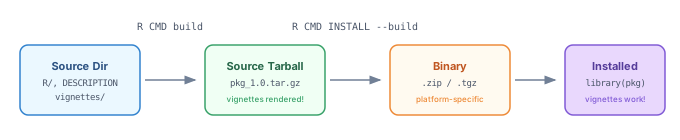
R CMD build takes your package source directory and bundles it into a distributable .tar.gz tarball. Think of it as carefully packing a suitcase for your package’s journey. This step does more than compress files: it processes your package in important ways, including rendering vignettes from their .Rmd or .qmd source files into HTML or PDF.
R CMD INSTALL takes either a source directory or a tarball and installs it into your R library, making it available for library() calls. The --build flag tells R to also produce a platform-specific binary (.zip on Windows, .tgz on macOS) that can be shared with others on the same platform.
Keen readers might wonder: if R CMD build creates a tarball and R CMD INSTALL --build creates a binary, why not have R CMD build --binary do both? As it turns out, that flag existed in earlier versions of R but was removed. If it still existed, much of the confusion we’re about to discuss could have been avoided. Alas, we must work with the tools we have.
The Mysterious Dot
When you see . in commands like R CMD build ., that dot is Unix shorthand for “the current directory.” It tells the command to operate on whatever directory you’re currently standing in.
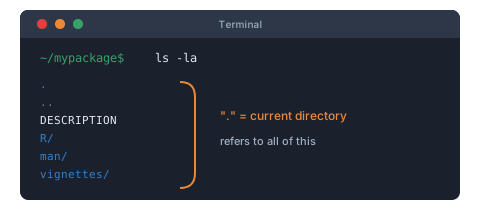
When you’re inside your package directory (the one containing DESCRIPTION), these two commands are equivalent:
R CMD build .
R CMD build /full/path/to/mypackage
The dot is more convenient when you’re already there. But this convenience hides an important distinction that we’ll explore next.
What R CMD build Actually Does
The source directory and the built tarball have different contents, and this difference is central to understanding our vignette problem.
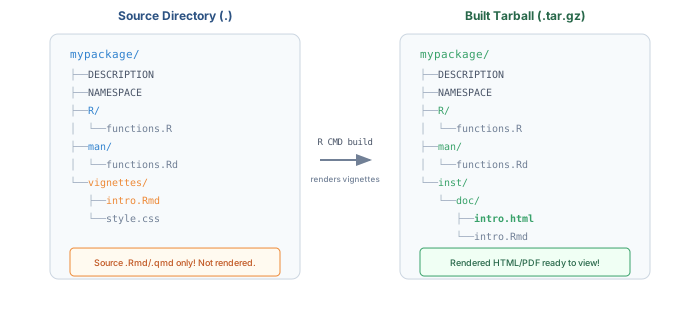
vignettes/ folder. After R CMD build runs, the tarball contains rendered output in inst/doc/. This transformation only happens during the build step.
In your source directory, you have a vignettes/ folder containing .Rmd or .qmd source files. These are the recipes for your vignettes, not the finished product. The inst/doc/ directory doesn’t exist yet.
When R CMD build runs, it performs several transformations:
- Renders
.Rmd/.qmdfiles into HTML or PDF - Creates the
inst/doc/directory - Places both the rendered output and the source files there
- Bundles everything into the tarball
After installation, contents of inst/doc/ become accessible at doc/ within the installed package. This is where browseVignettes() looks for vignettes to display.
Two Paths, Two Outcomes
The --build flag is useful when you want to create a binary package during installation. But there are two ways to use it, and they produce different results:
Option A: From the source directory
cd mypackage
R CMD INSTALL --build .
Option B: From a tarball
R CMD INSTALL --build mypackage_1.0.0.tar.gzBoth commands create an installed package plus a binary. But only Option B includes vignettes:
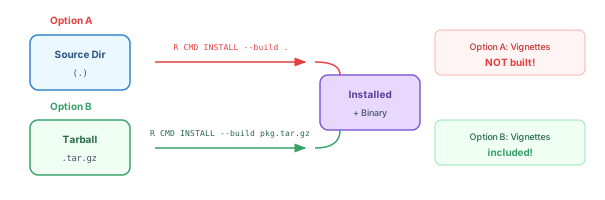
Option A skips vignette rendering entirely. When you run R CMD INSTALL --build . from a source directory, R performs a minimal build focused on compilation and installation. It does not run the full R CMD build process. Your vignettes/ folder is present with your .Rmd source files, but they never get rendered into HTML or PDF. No inst/doc/ directory gets created.
The key insight is that the --build flag in R CMD INSTALL means “also produce a binary package file,” not “run R CMD build first.” These are two different operations that happen to share similar terminology.
The resulting installed packages have completely different structures:
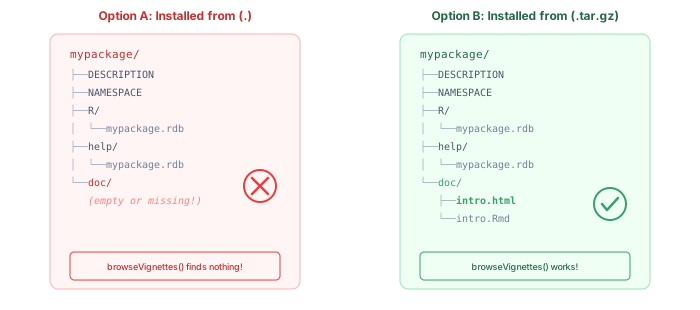
The Solution
When you need vignettes in your installed package, the two-step process is required:
# Step 1: Build the source tarball (this renders vignettes!)
R CMD build .

# Step 2: Install and create binary from the tarball
R CMD INSTALL --build mypackage_1.0.0.tar.gz
From Within R
You can achieve the same result using install.packages():
install.packages(
  "mypackage_1.0.0.tar.gz",
  repos = NULL,
  type = "source",
  INSTALL_opts = "--build"
)
The key is starting from the .tar.gz tarball, not a directory path.
Using devtools or remotes
The devtools and remotes packages handle this more gracefully. When given a directory path, they run the equivalent of R CMD build first, so vignettes get rendered automatically:
devtools::install_local("path/to/mypackage", build_vignettes = TRUE)
remotes::install_local("path/to/mypackage", build_vignettes = TRUE)
This is one reason why many developers prefer these higher-level tools for package installation during development.
Our GitHub Actions Fix
Our workflow was designed with separation of concerns in mind. The first job built the source tarball on Ubuntu and uploaded it as an artifact. Separate jobs would then spin up on each target platform (Intel macOS, ARM macOS, Windows, Linux), download that artifact, and build the platform-specific binary.
The architecture was sound. The implementation had a subtle bug:
# Job 1: Build source package
build-source:
  runs-on: ubuntu-latest
  steps:
    - uses: actions/checkout@v4
    - uses: r-lib/actions/setup-r@v2

    - name: Build source tarball
      run: R CMD build .

    - name: Upload source package
      uses: actions/upload-artifact@v4
      with:
        name: source-package
        path: "*.tar.gz"

# Job 2: Build binaries (runs on multiple platforms)
build-binary:
  needs: build-source
  strategy:
    matrix:
      os: [macos-latest, macos-14, windows-latest, ubuntu-latest]
  runs-on: ${{ matrix.os }}
  steps:
    - name: Download source package
      uses: actions/download-artifact@v4
      with:
        name: source-package

    - name: Extract and build binary
      run: |
        tar -xzf *.tar.gz
        cd mypackage
        R CMD INSTALL --build .   # <-- THE BUG!
After downloading the tarball, we extracted it, changed into the directory, and ran R CMD INSTALL --build .. By using . instead of the tarball, we discarded the rendered vignettes and went back to installing from raw source files.
The fix:
    - name: Build binary from tarball
      run: R CMD INSTALL --build *.tar.gz
No extraction needed. The *.tar.gz glob pattern matches the downloaded tarball directly. This approach also avoids hardcoding the package name and version, which would require updating the workflow with every version bump.
Wrapping Up
The distinction between a source directory and a built tarball is easy to overlook, especially when both can serve as input to R CMD INSTALL. But they represent different stages in the package lifecycle, and choosing the wrong one has consequences.
| Command | Input | Vignettes? |
|---|---|---|
R CMD build . |
Source dir | Rendered into tarball |
R CMD INSTALL --build . |
Source dir | Not built! |
R CMD INSTALL --build pkg.tar.gz |
Tarball | Included |
The humble . might look like a shortcut, but when vignettes matter, it’s a trapdoor. The two-step dance through R CMD build followed by R CMD INSTALL --build ensures your documentation makes it to the finish line.
Your users (and your future self debugging at 2am) will thank you.